 Teamwise Super Admin
6. Page Management Module
1. Page List View
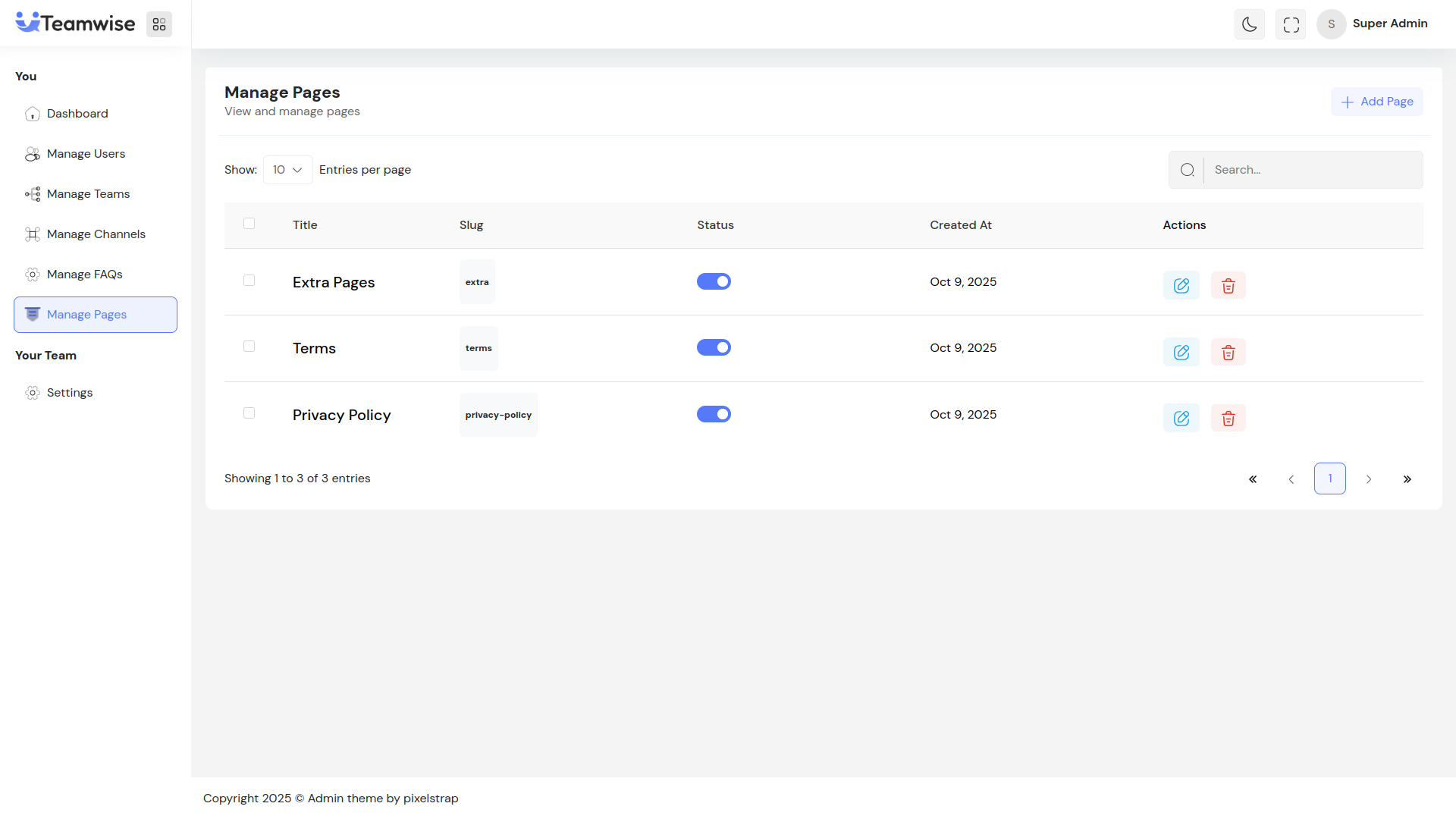
The pages table displays all content pages with title, slug (URL identifier), status toggle, creation date, and action buttons (Edit and Delete).
2. Add/Edit Page
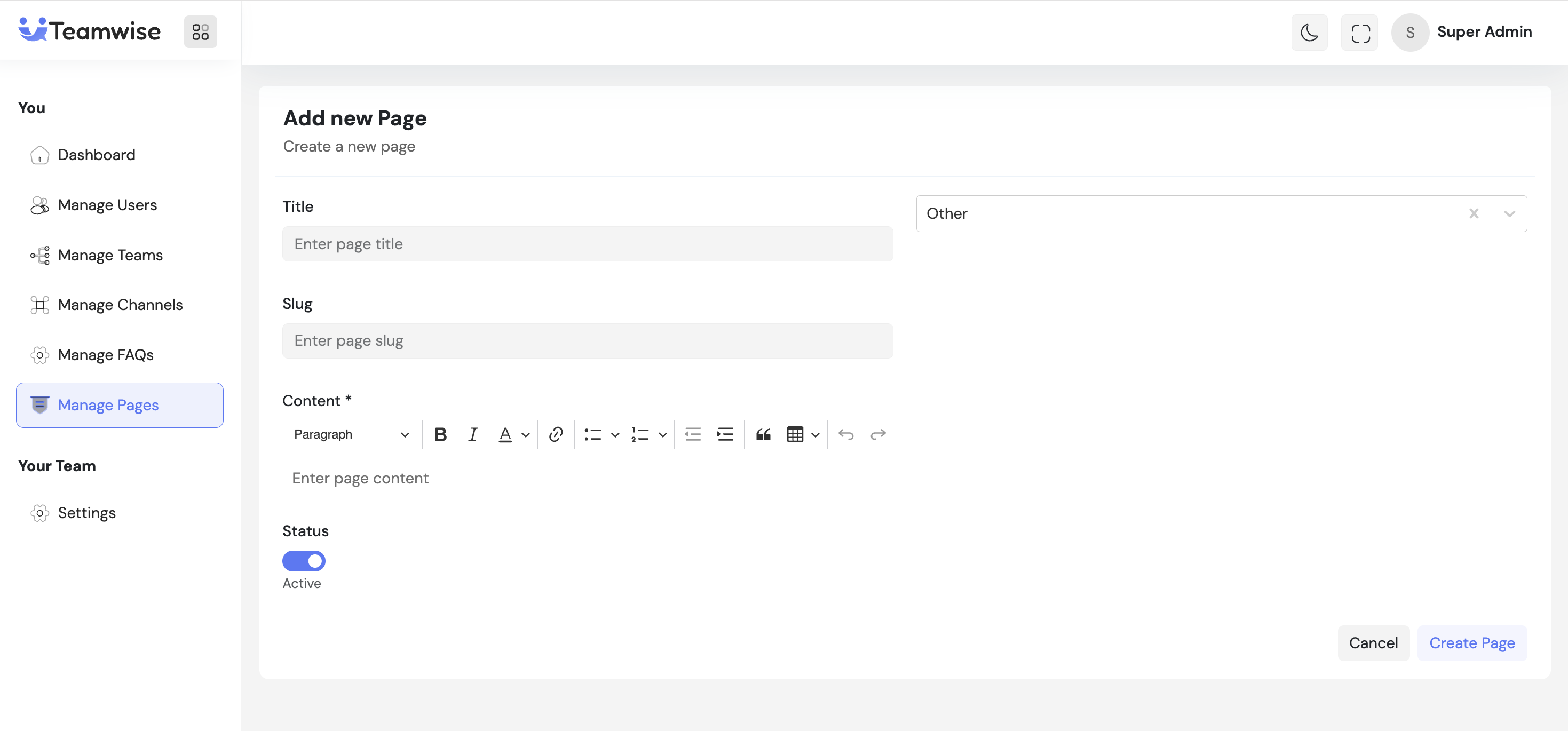
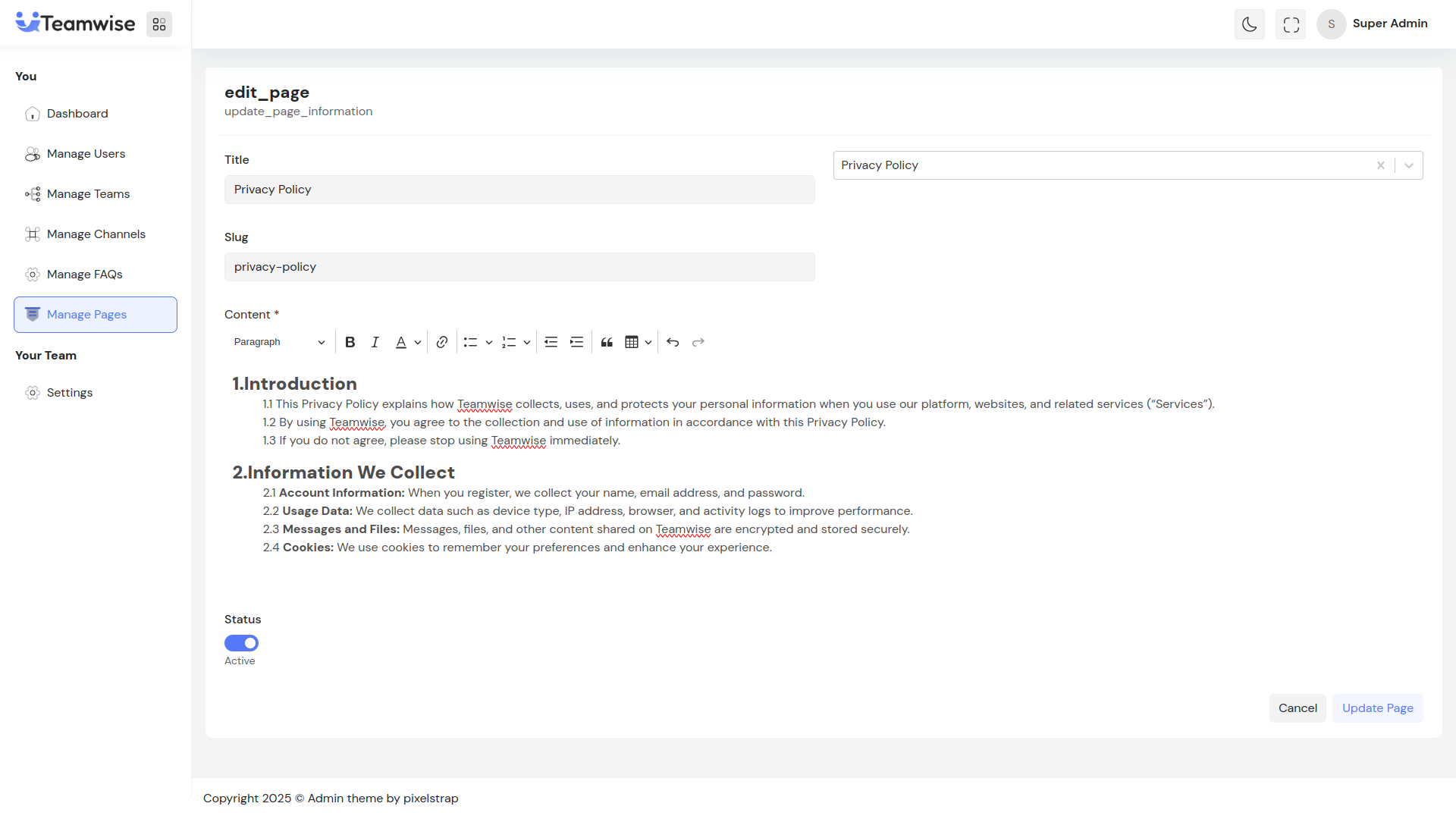
Admin can click Add Page or Edit to manage:
-
- Title (3-200 characters)
-
- Page Type (Terms, Privacy Policy, or Other)
-
- Slug (auto-generated for predefined types, manual for "Other")
-
Content (rich text editor with formatting options)
-
Status (Active/Inactive toggle)
After saving, the page is created/updated and appears in the list.
3. Toggle Page Status
Admin can activate/deactivate pages using the status toggle. Active pages are accessible to users, inactive ones are hidden. Status changes take effect immediately.
4. Delete Page
When admin clicks Delete, upon confirmation, the page is permanently deleted and removed from the table. Bulk delete is available for multiple pages.
Key Points
-
- Changes apply platform-wide immediately after saving
-
- Supports PNG, JPG, SVG formats for logos and images
-
- SMTP configuration required for email functionality
-
- Settings organized in tabs: General and Email Configuration
What's Next?
Let’s get started — your team’s new home is Teamwise Chat!


