 Teamwise Super Admin
3. Team Management Module
1. Team List View
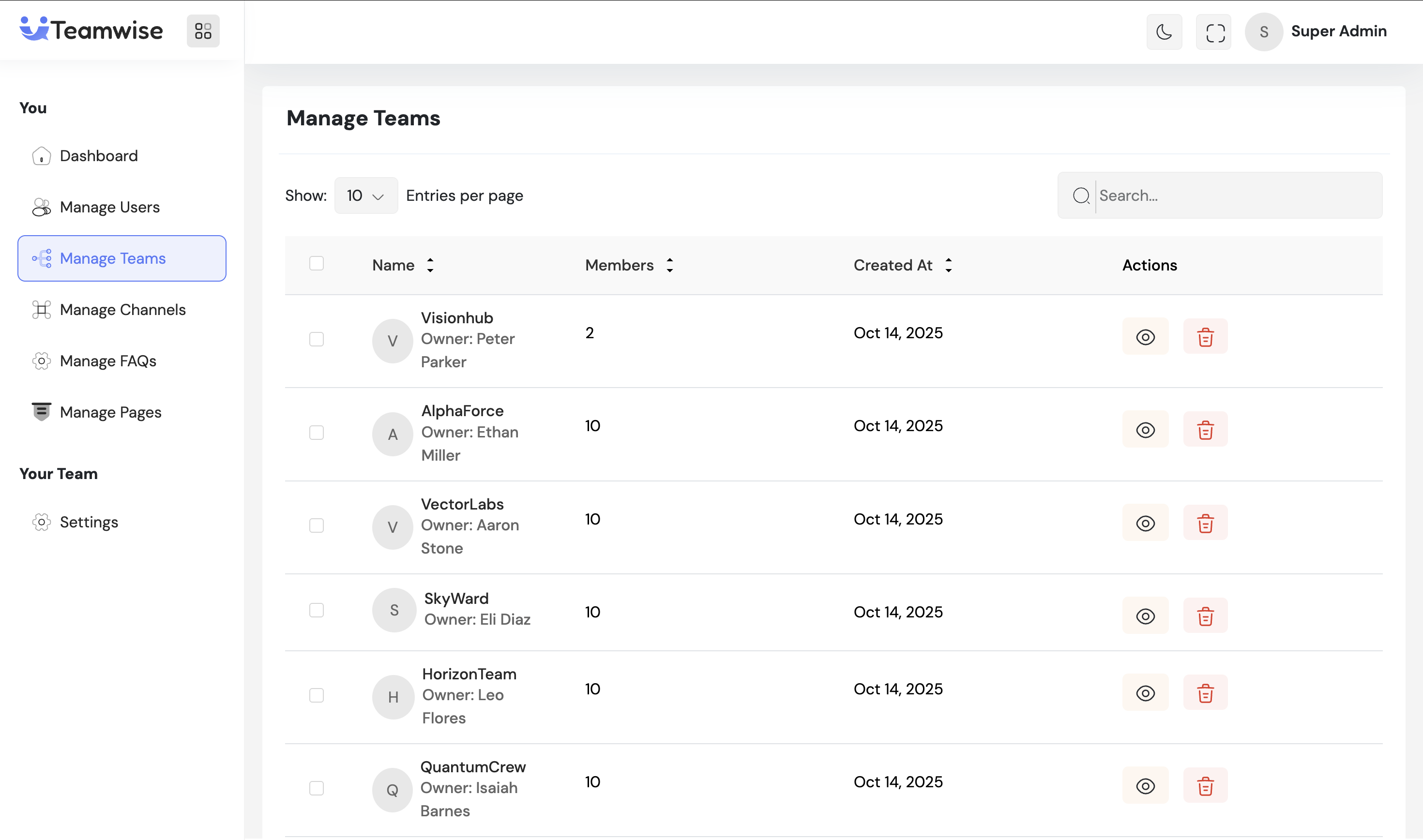
The teams table displays all teams with team name, owner, total members, and creation date. Admin has View and Delete options for each team.
2. Delete Team
When admin clicks Delete on a team, upon confirmation, the entire team is permanently deleted from the system. Bulk delete is available for multiple teams.
3. View Team Members
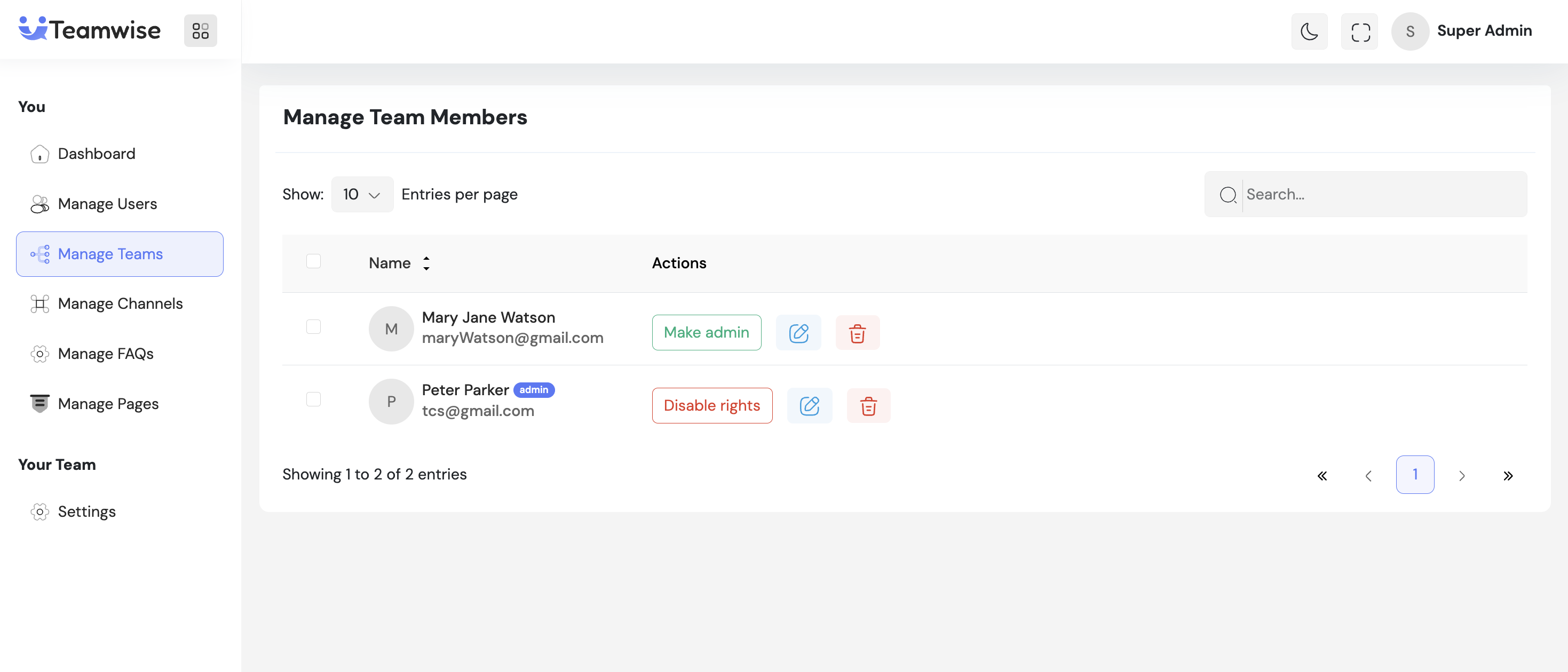
Clicking View opens the team members list showing member name, email, profile picture, and admin badge (if applicable). Available actions:
-
- Make Admin / Remove Admin: Promote members to admin or remove admin rights
-
- Edit: Modify member profile details
-
- Delete: Remove member from the team
-
4. Manage Admin Rights
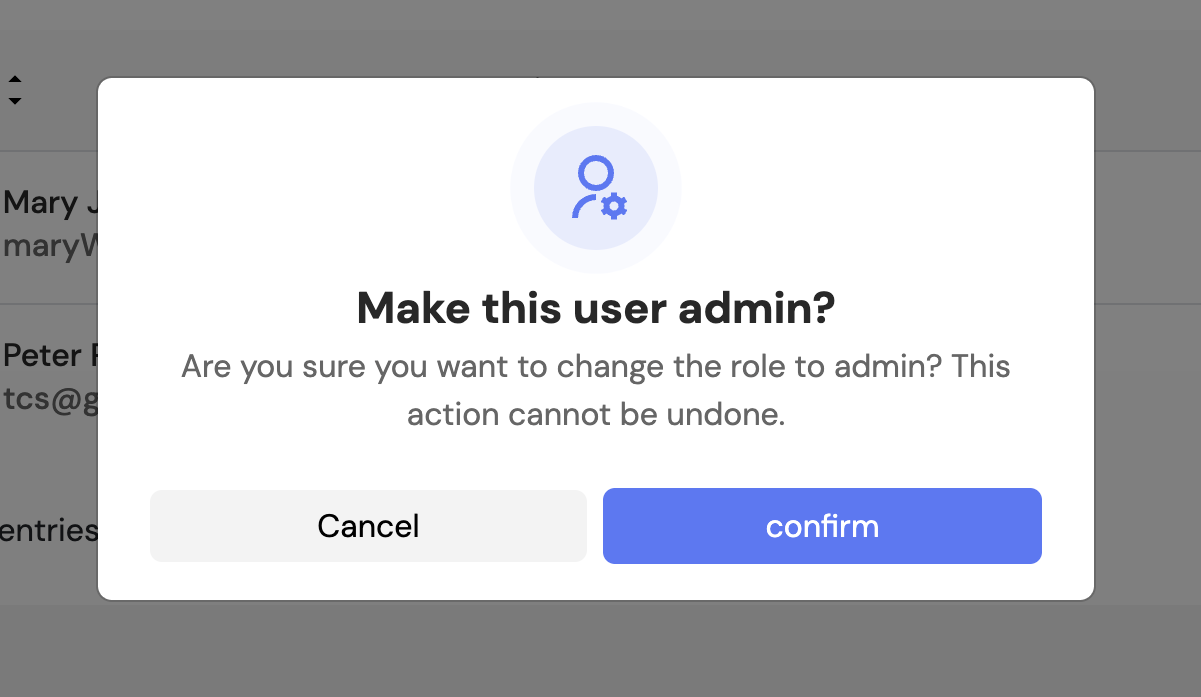
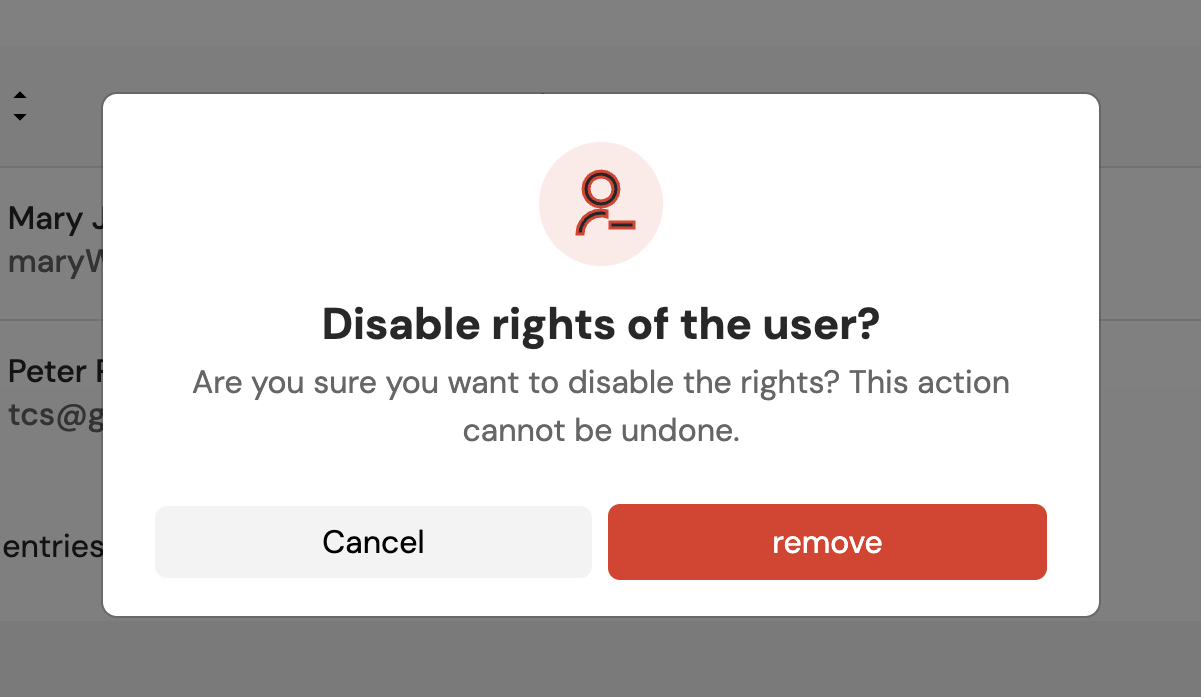
Admin can promote members to admin or remove admin rights. Upon confirmation, the change takes effect immediately and the admin badge appears/disappears accordingly.
5. Remove Member from Team
When admin clicks Delete on a member, upon confirmation, the member is removed from the team but their user account remains active. They lose access only to that specific team. Bulk remove is available for multiple members.
6. Edit Team Member
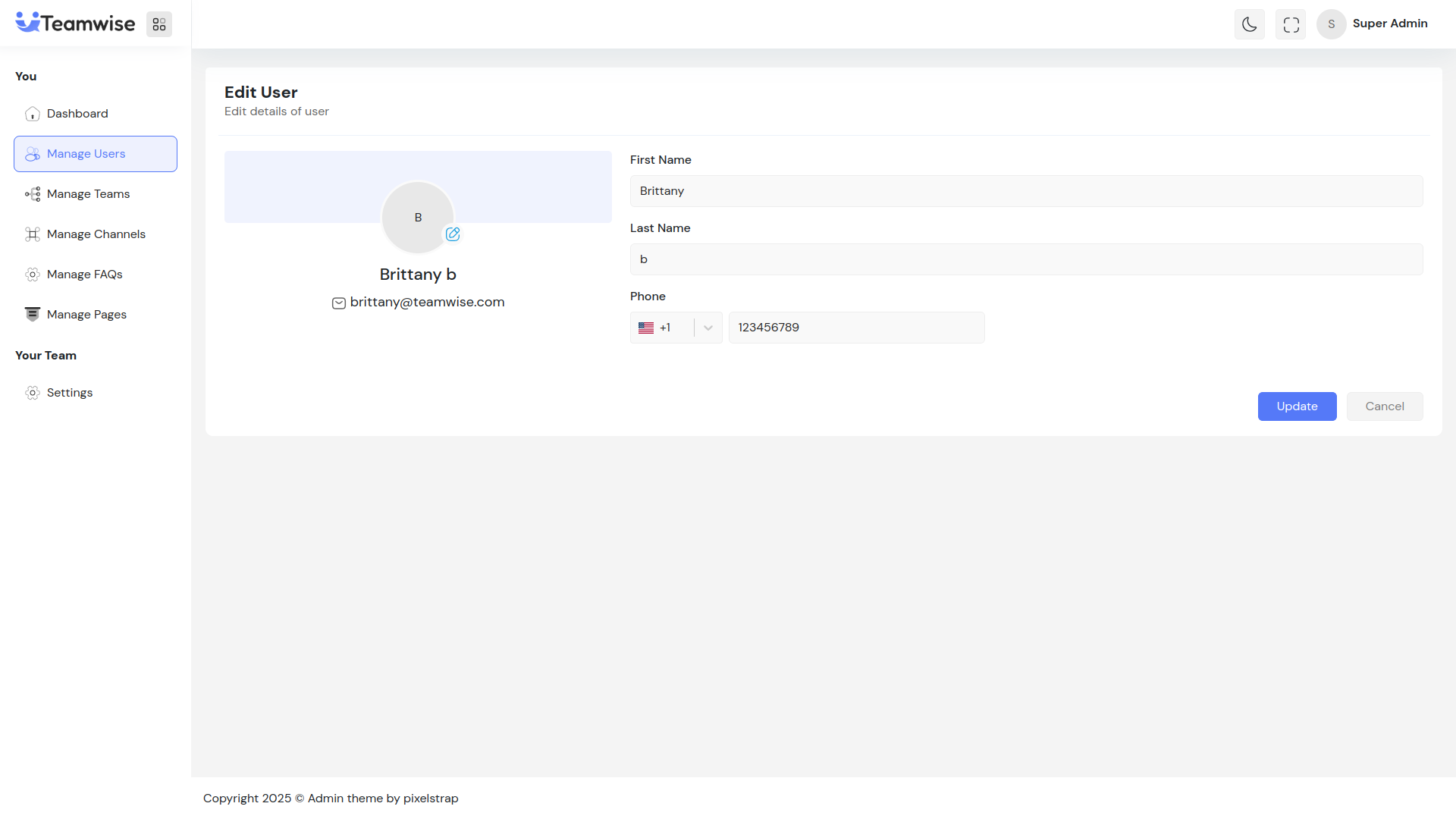
Admin can click the Edit button to modify member details (name, phone, profile picture). This redirects to the user edit page.
Key Points
-
- All actions require confirmation to prevent accidental changes
-
- Success/error notifications appear for every action
-
- Admin rights changes reflect immediately in the table
-
- At least one member must remain in a team (cannot delete all members)
-
Removing a member from a team doesn't delete their user account
What's Next?
Let’s get started — your team’s new home is Teamwise Chat!


