 Teamwise Team Admin
5. Team Permissions & Settings
The Team Permissions & Settings module serves as the central configuration hub where team administrators define team-wide policies, access controls, and operational parameters.
This interface uses an accordion-style layout to organize settings into logical categories, allowing admins to establish governance rules that control how members interact, communicate, and collaborate within the workspace.
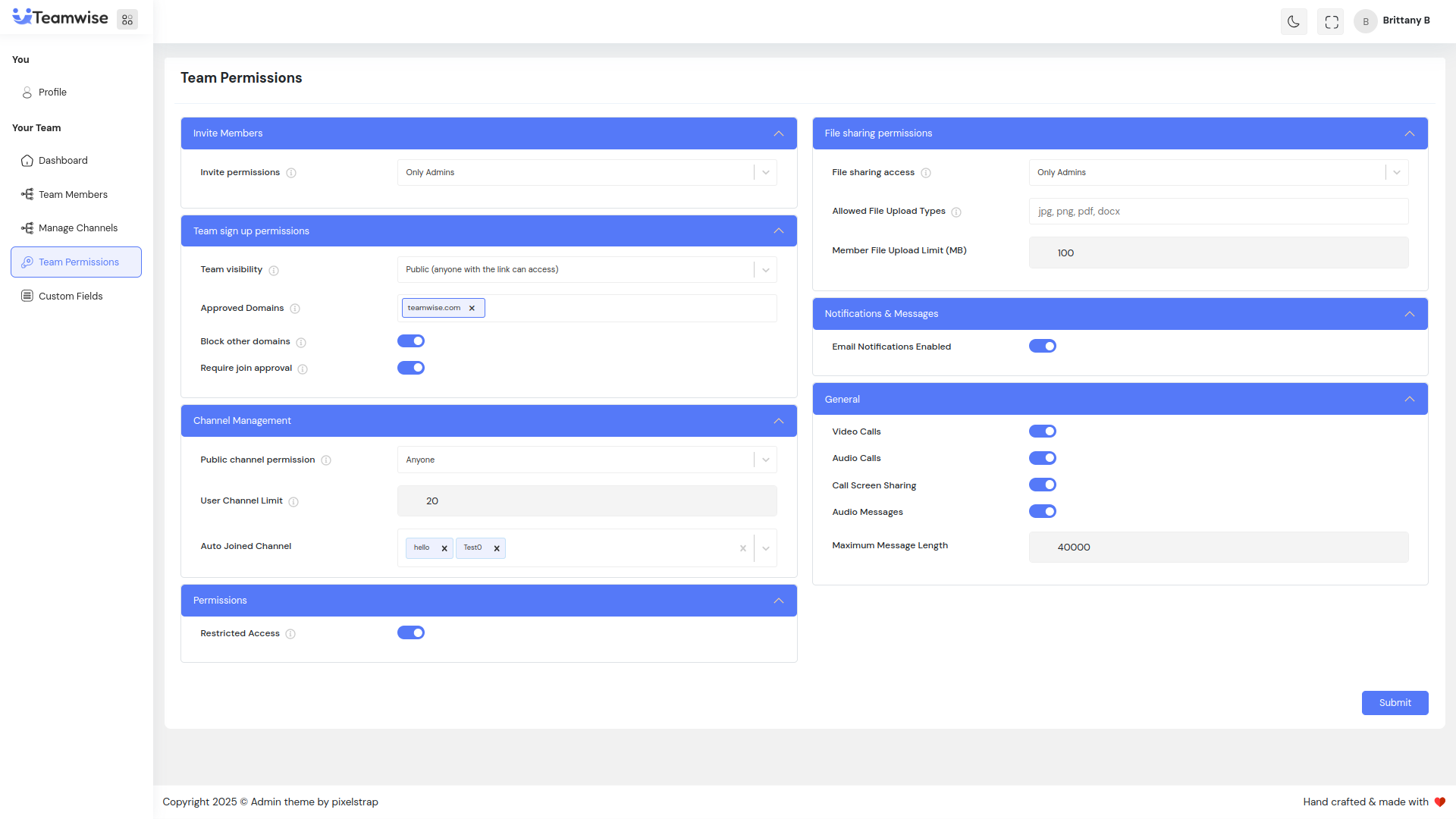
Core Functionality:
1. Invite Members Settings
Displays all team channels in a comprehensive table view, including:
Admins can:
-
- Restrict invitation rights to administrators only
-
- Allow all members to send invitations
This setting defines the team’s growth model and access control strategy.
2. Team Sign-Up Permissions
Controls how users can join the team through various methods.
Admins can configure:
-
- Team visibility (public or private)
-
- Direct join without invitation (enable/disable)
-
- Approval requirements for join requests
-
- Invite-only mode for restricted access
3. Automatically Add Users
Allows domain-based automatic team membership.
Admins can:
-
- Specify approved email domains whose users are auto-added
-
- Block all domains except approved ones
-
- Simplify onboarding for organization-wide deployments
4. Channel Management Permissions
Defines who can create channels and sets specific limitations.
Admins can configure:
-
- Public channel creation rights (admins only, all members, or specific users)
-
- Private channel creation permissions
-
- Maximum channels per user
-
- Whitelists for specific members allowed to create channels
5. General Permissions
Controls a range of team-wide features including communication and collaboration settings:
-
- Enable/disable audio and video calls
-
- Allow or restrict audio messages
-
- Toggle screen sharing during calls
-
- Set maximum message length
-
- Choose default theme mode (light/dark)
6. File Sharing Permissions
Manages file upload and sharing policies.
Admins can define:
-
- Who can upload files (all members, admins, or specific users)
-
- Allowed file types and formats
-
- Maximum file size per upload
7. Notifications & Messages
Controls communication preferences and notification rules across the team.
Admins can configure:
-
- Enable/disable email notifications for activities
-
- Set message retention periods for auto-deletion
-
- Define default notification levels (all messages, mentions only, or none)
8. Save and Apply Changes
All configuration updates are submitted through a single Save action at the bottom of the form.
-
- Validates changes to prevent conflicts
-
- Applies updates immediately across the team
-
- Ensures synchronized policy enforcement
Key Points
-
- Accordion-style interface organizes settings into eight logical sections
-
- Role-based permissions for Admins, Members, and Specific Users
-
- Domain-based user auto-addition for large organizations
-
- Granular control over channel creation and team access
-
- Comprehensive file sharing and storage policies
-
- Feature toggles for calls, messaging, and collaboration
-
- Automatic validation to prevent configuration conflicts
-
- Immediate effect after saving — no manual refresh required
-
- Single save action applies all changes seamlessly across categories
What's Next?
Let’s get started — your team’s new home is Teamwise Chat!


