 Teamwise Team Admin
10. Wallet Module
The Wallet Module enables team admins to manage wallet balance, add funds through various payment gateways, and track all wallet transactions for billing and subscription purposes.
Note: The Wallet Module is available only in the Extended Version of Teamwise. For free version users, the module displays an upgrade message indicating that wallet functionality requires the Extended Version purchase.
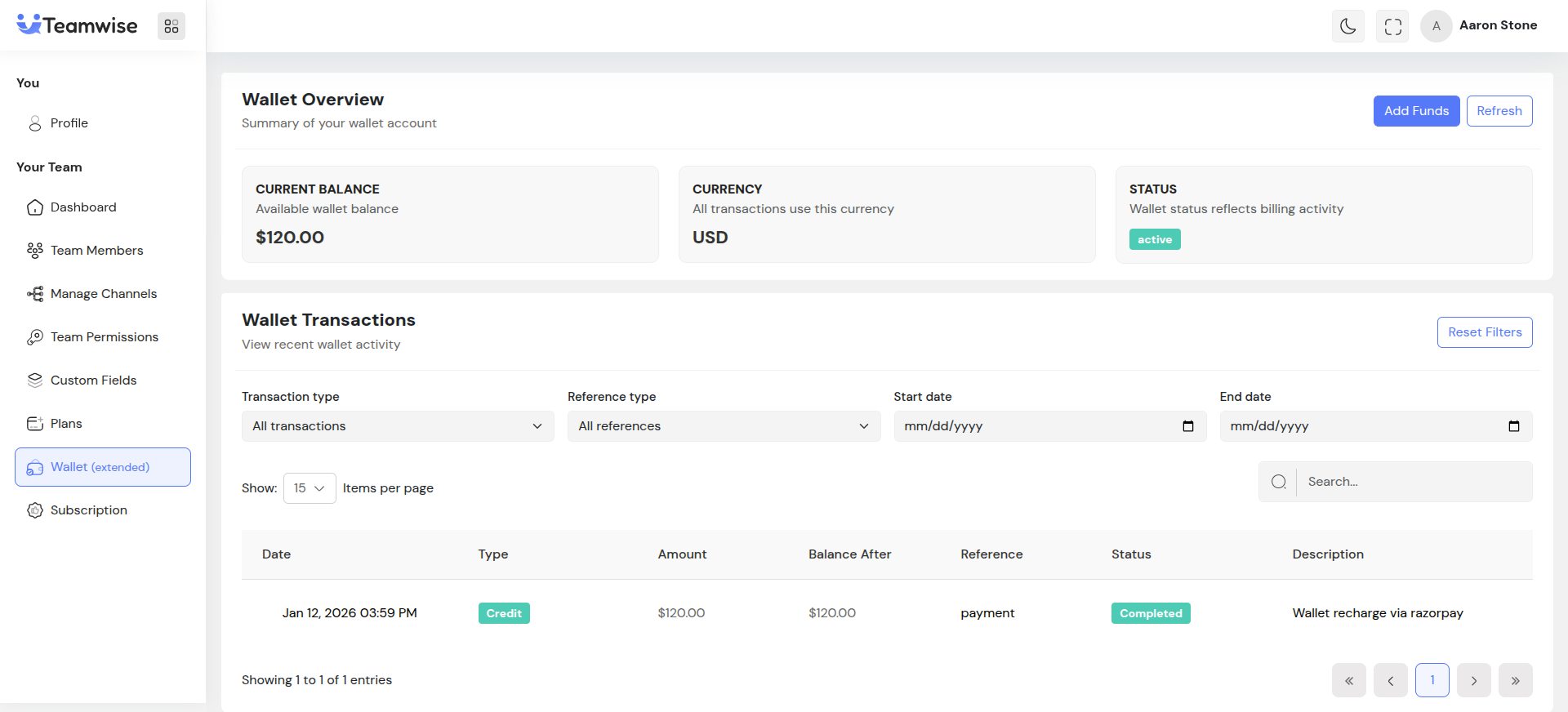
Core Functionality:
Wallet Overview Card:
The module displays a comprehensive overview card at the top showing key wallet information:
-
- Current Balance: The available wallet balance displayed prominently in the wallet's currency
-
- Currency: The currency used for all wallet transactions (e.g., USD, EUR, INR)
-
- Wallet Status: Status badge showing the wallet state with color coding - Active: Green badge (wallet is fully operational), Suspended: Yellow/Warning badge (wallet temporarily disabled), Closed: Gray/Secondary badge (wallet permanently closed), Pending: Yellow/Warning badge (wallet activation pending)
-
- Action Buttons: "Add Funds" button opens the add funds modal, "Refresh" button refreshes wallet balance and transaction data
Add Funds to Wallet:
Team admins can add funds to their wallet through the "Add Funds" modal, which supports multiple payment gateways:
-
- Payment Gateway Selection: Team admins can choose from available payment gateways - Stripe: Credit/debit card payments, PayPal: PayPal account payments, Razorpay: Alternative payment gateway (region-specific)
-
- Amount Input: Team admins enter the amount they want to add to the wallet. The amount is validated to ensure it's a positive number and meets minimum requirements.
-
- Payment Processing Flow: 1. Team admin enters amount and selects payment gateway, 2. System initiates payment request via selected gateway, 3. User is redirected to gateway's payment page or modal, 4. After payment completion, user returns to wallet page, 5. System verifies payment and credits wallet balance, 6. Transaction is recorded in wallet transaction history
-
- Payment Verification: After payment completion, the system verifies the payment through the payment gateway's API and updates the wallet balance accordingly. Failed payments are logged but do not affect wallet balance.
Wallet Transactions Table:
The module displays a comprehensive table of all wallet transactions with the following columns:
-
- Transaction ID: Unique identifier for each transaction
-
- Date: Date and time when the transaction occurred
-
- Type: Transaction type with color coding - Credit: Green (money added to wallet), Debit: Red (money deducted from wallet)
-
- Amount: Transaction amount formatted in wallet currency
-
- Reference Type: The purpose/category of the transaction - Payment: Direct payment transactions, Subscription: Subscription-related transactions, Refund: Refund transactions, Adjustment: Manual adjustments or corrections
-
- Status: Transaction status indicator - Pending: Transaction initiated but not completed, Completed: Transaction successfully processed, Failed: Transaction failed or was rejected, Reversed: Transaction was reversed or cancelled
-
- Description: Detailed description or notes about the transaction
-
- Balance After: Wallet balance after the transaction was processed
Transaction Filtering:
Team admins can filter wallet transactions using multiple criteria:
-
- Transaction Type Filter: Filter by Credit or Debit transactions
-
- Reference Type Filter: Filter by Payment, Subscription, Refund, or Adjustment
-
- Date Range Filter: Filter transactions by start date and end date range
-
- Reset Filters: Clear all applied filters to view all transactions
Pagination:
The wallet transactions table supports pagination for teams with extensive transaction history:
-
- Pagination controls appear at the bottom of the table when there are multiple pages
-
- Shows current page number and total pages
-
- Previous and Next buttons allow navigation between pages
-
- Default page size configurable (typically 10-20 transactions per page)
Wallet Integration with Subscriptions:
The wallet module integrates seamlessly with the subscription system:
-
- Subscription Payments: Wallet balance is used to pay for subscription fees automatically
-
- Plan Changes: When upgrading/downgrading plans, the system checks wallet balance and displays wallet impact in the plan change preview
-
- Insufficient Balance Warning: If wallet balance is insufficient for a subscription operation, the system displays a warning and prompts the team admin to add funds
-
- Proration Credits: Unused subscription amounts are credited to the wallet when plans are changed or cancelled
Loading States:
The module handles loading states gracefully:
-
- While fetching wallet overview: Shows a centered spinner in the overview card
-
- While fetching transactions: Shows a loading indicator in the transactions table
-
- During payment processing: Shows loading state on payment buttons
Error Handling:
The module handles various error scenarios:
-
- Extended Version Required: Free version users see an upgrade message instead of wallet functionality
-
- API Errors: Displays appropriate error messages when wallet data cannot be loaded
-
- Payment Failures: Shows specific error messages if payment processing fails
-
- Payment Verification Errors: Handles cases where payment verification fails after completion
Currency Formatting:
All currency amounts are properly formatted according to the wallet's currency setting:
-
- Amounts display with appropriate currency symbols ($, €, ₹, etc.)
-
- Decimal places are formatted according to currency standards (2 decimal places for most currencies)
-
- Thousands separators are applied for readability (e.g., 1,000.00 USD)
Key Points
-
- Wallet Module is available only in Extended Version - free version users see upgrade message
-
- Wallet balance is automatically used for subscription payments and plan changes
-
- Multiple payment gateways supported (Stripe, PayPal, Razorpay) for adding funds
-
- Complete transaction history is maintained for auditing and record-keeping
-
- Transaction filtering allows quick access to specific transaction types or date ranges
-
- Pagination ensures performance even with extensive transaction history
-
- Wallet status reflects billing activity and can be Active, Suspended, Closed, or Pending
-
- All currency amounts are properly formatted according to wallet currency setting
-
- Payment verification ensures wallet balance is only updated after confirmed payments
-
- Real-time balance updates reflect transactions immediately after processing
-
- Wallet balance is checked during plan changes to ensure sufficient funds
-
- Proration credits from plan changes are automatically added to wallet balance
What's Next?
Let's get started — your team's new home is Teamwise Chat!


