 Teamwise Super Admin
2. User Management Module
1. User List View
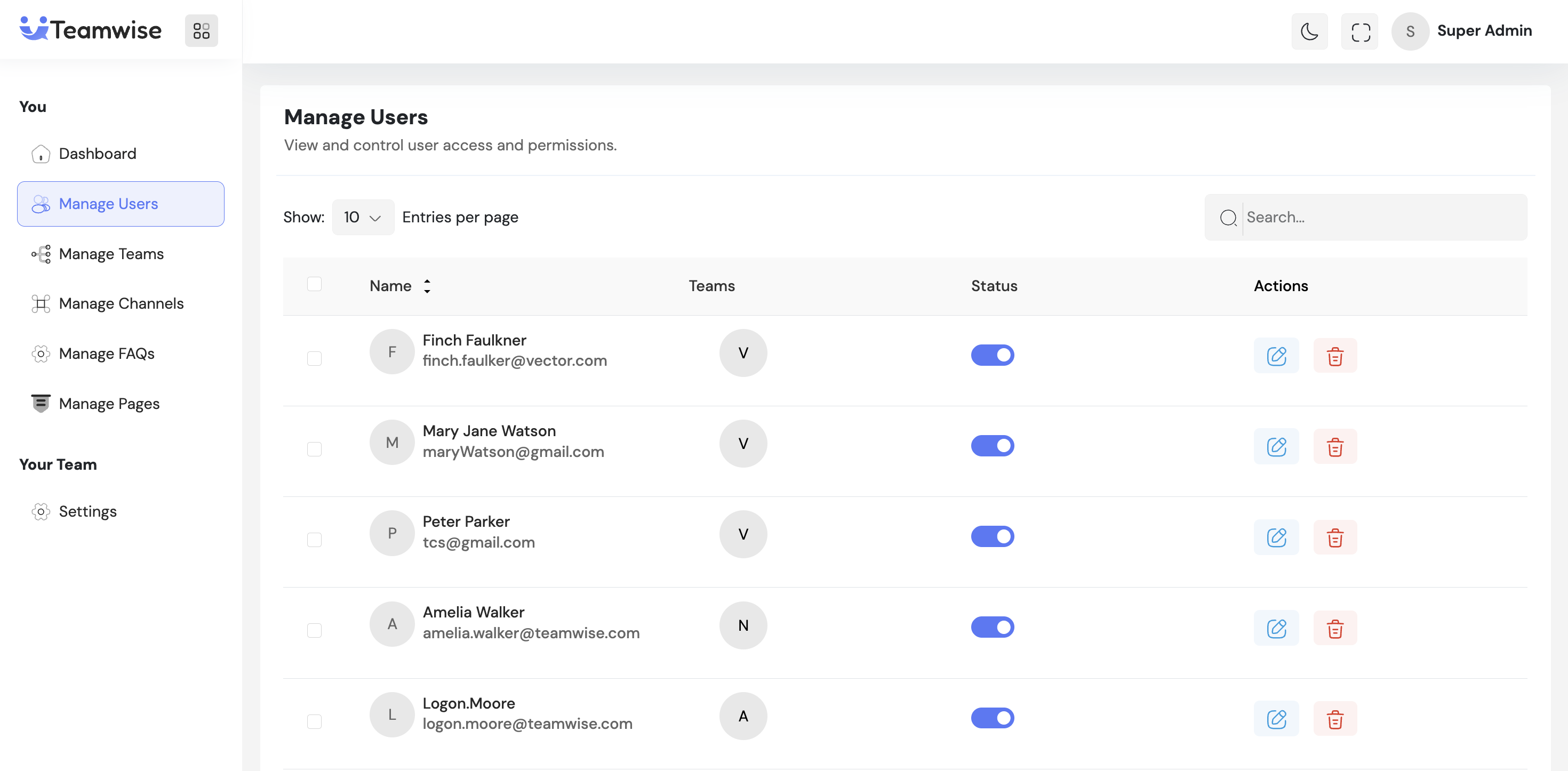
The user management table displays all registered users with their details including name, email,
associated teams, and current status.
2. User Status Management
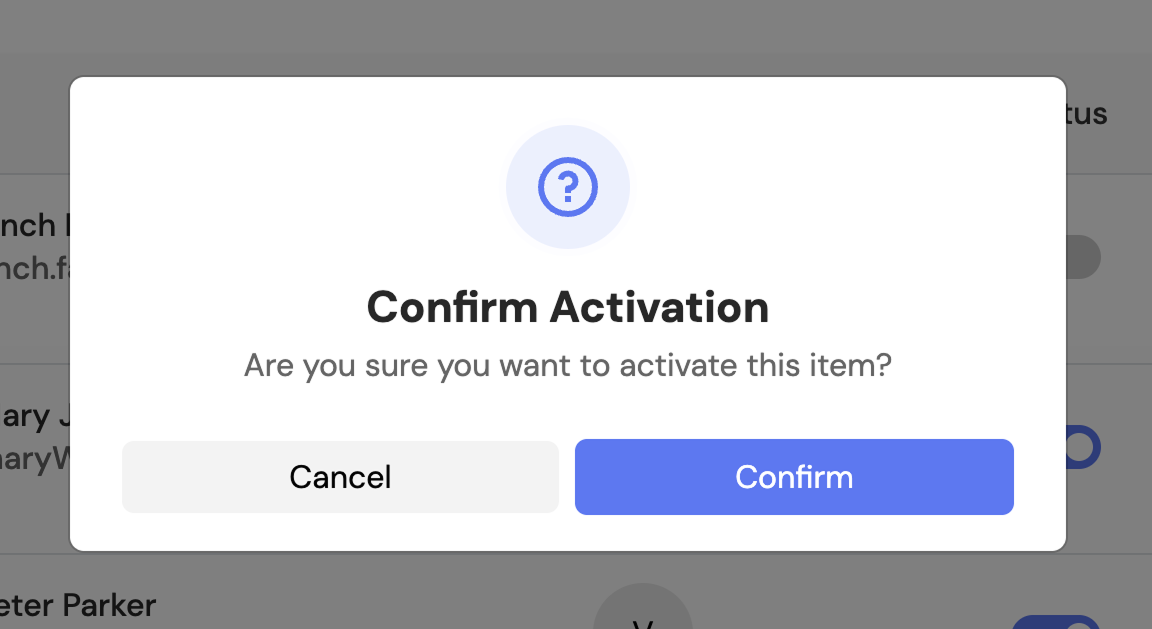
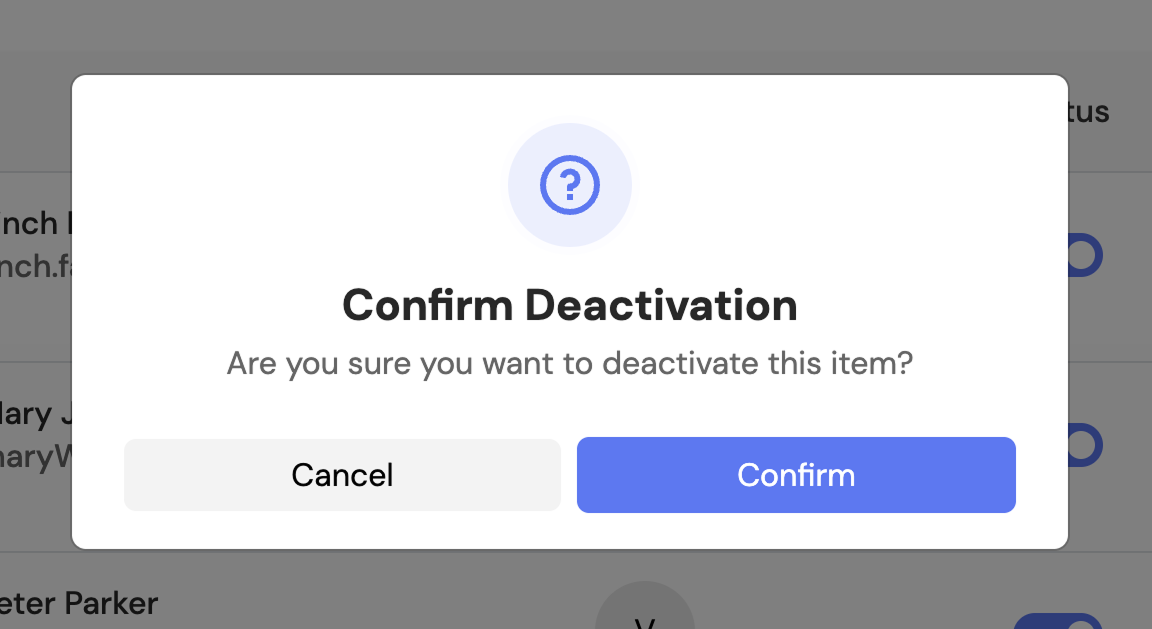
Admin can toggle user status using the switch button. When a user is deactivated, the status changes immediately and the user loses access to the platform. Success notification appears confirming the status update.
3. Edit User Details
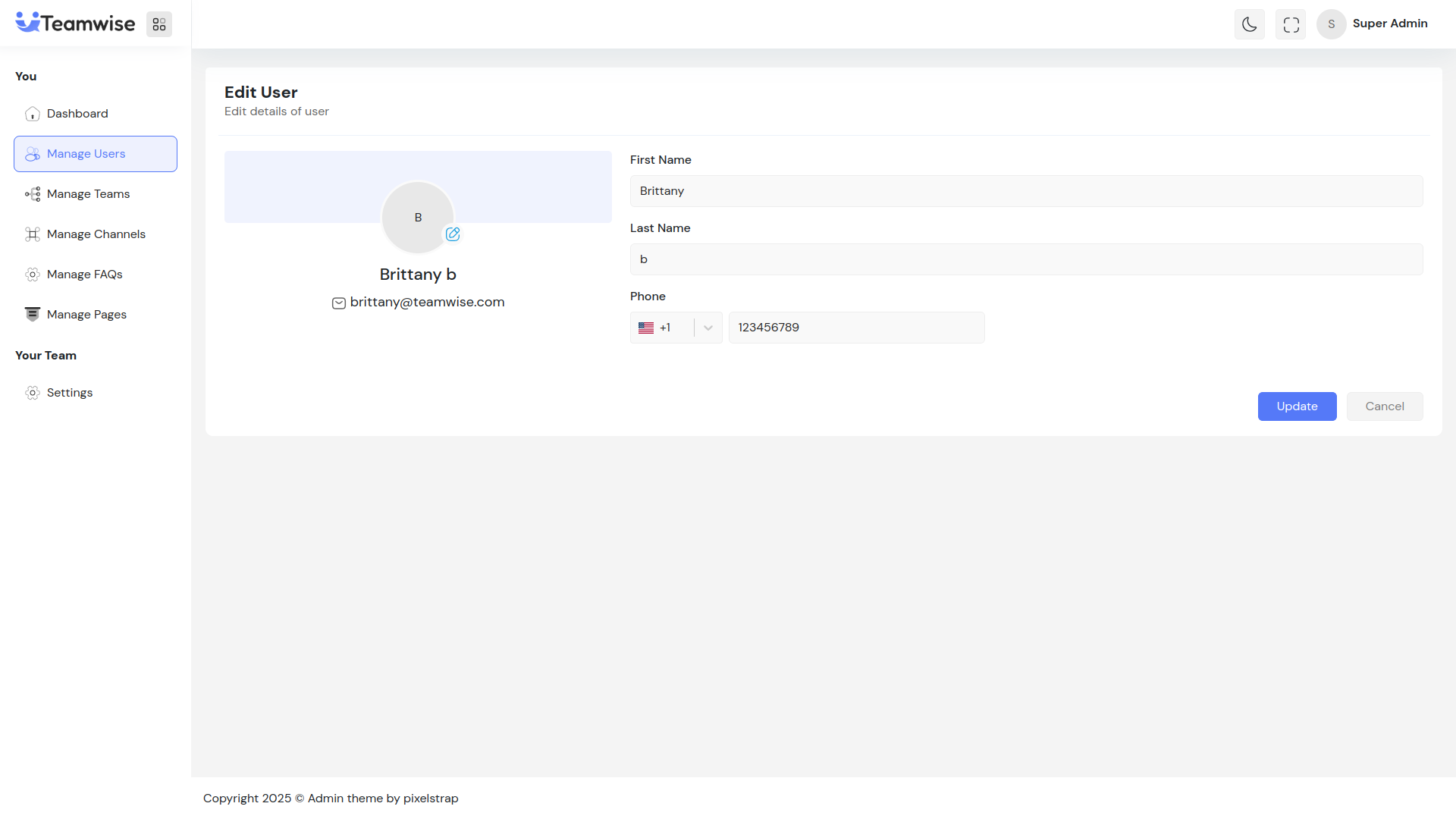
Admin can click the Manage/Edit button to modify:
-
- First Name and Last Name
-
- Phone Number (with country code)
-
- Profile Avatar (upload, edit, or remove)
-
- Email (view-only, cannot be edited)
After updating, changes are saved and reflected immediately in the user list.
4. Impersonate User
Super Admin can impersonate any user to view their account without performing any actions. This feature is useful for support and troubleshooting purposes.
How Impersonation Works:
-
Initiate Impersonation: Admin clicks the "Impersonate" button next to the user in the user management table
-
Token Generation: System generates a new authentication token for the impersonated user session
-
Automatic Redirect: Admin is automatically redirected to the frontend application URL (configured in .env file as
VITE_FROTNEND_APP_URL) -
View-Only Access: Admin can view the user's chat area, messages, channels, and all interface elements
-
Read-Only Mode: No actions can be performed - no sending messages, no editing, no deleting
-
Impersonation Banner: An orange banner appears at the top showing "Impersonating: [User Name]" with a "Stop" button
-
Stop Impersonation: Clicking "Stop" ends the session and redirects back to the admin dashboard
Technical Details:
-
- Impersonation session uses a separate token stored in cookies (
impersonate-token) -
- Backend tracks impersonator details (ID, name, email, role) during the session
-
- Frontend checks impersonation status via API endpoint (
/impersonation/status) -
- All user actions are blocked when
isImpersonatingflag is true -
- Stopping impersonation restores the original admin token and returns to admin panel
Configuration Required:
Set the frontend URL in your .env file:
VITE_FRONTEND_APP_URL=https://your-frontend-url.comThis URL is where the admin will be redirected when impersonating a user.
5. Delete User
When admin clicks Delete, a confirmation is required. Upon confirmation, the user is permanently deleted from the system, loses all access, and is removed from the table. Bulk delete option is also available for multiple users.
Key Points
-
- All actions (activate/deactivate, edit, impersonate, delete) show instant feedback via toast notifications
-
- Impersonation provides view-only access to user accounts for support purposes
-
- Impersonation banner is always visible to indicate active impersonation session
-
- Deleted users are permanently removed from the system
-
- Email addresses cannot be modified after account creation
-
- Status changes take effect immediately
What's Next?
Let’s get started — your team’s new home is Teamwise Chat!

