 Teamwise Super Admin
7. Settings Module
1. Settings Overview
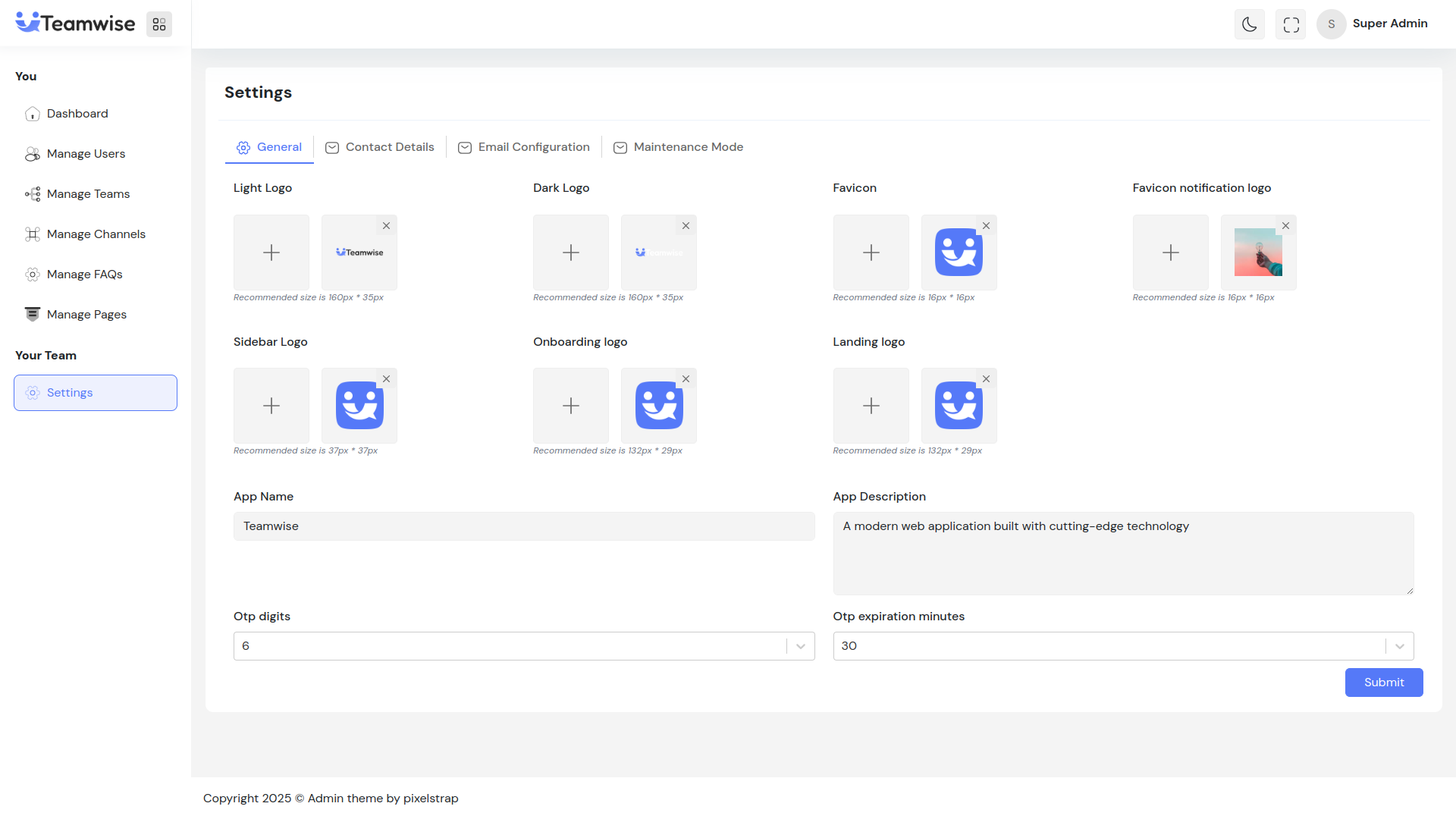
The Settings module is organized into two tabs: General and Email Configuration. Admin can configure application-wide settings that affect the entire platform.
2. General Settings Tab
Admin can configure the following general settings:Branding & Logos:
-
- Light Logo (for light theme)
-
- Dark Logo (for dark theme)
-
- Favicon (browser tab icon)
-
- Sidebar Logo
Application Settings:
-
- App Name
-
- OTP Digits (number of digits in OTP)
-
- OTP Expiration Minutes (validity period)
Error Pages Configuration:
-
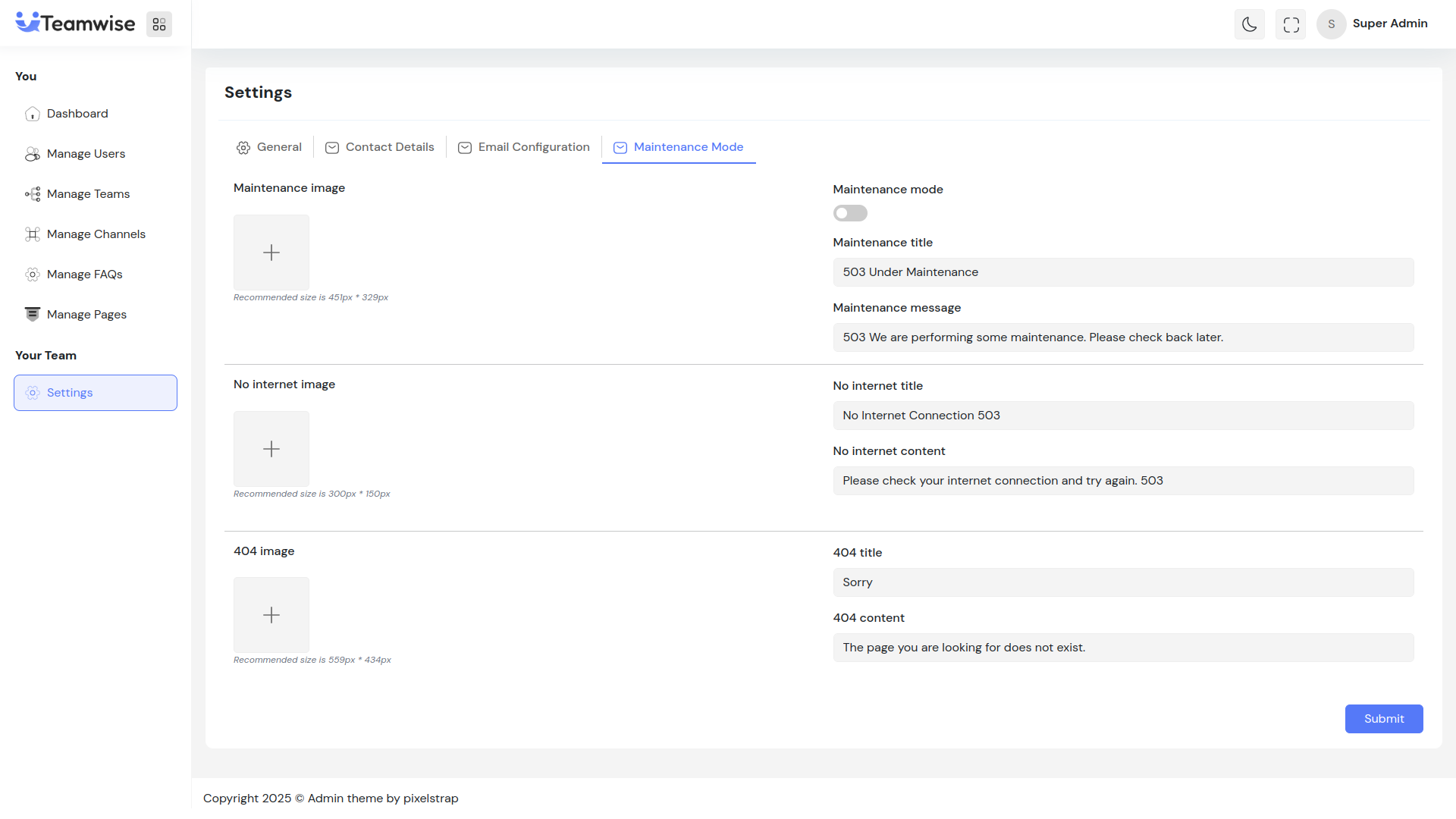
- No Internet Title & Content
-
- No Internet Image
-
- 404 Page Title & Content
-
- 404 Page Image
After updating any settings, changes are saved and applied immediately across the platform. Success notification confirms the update.
3. Contact Details Tab
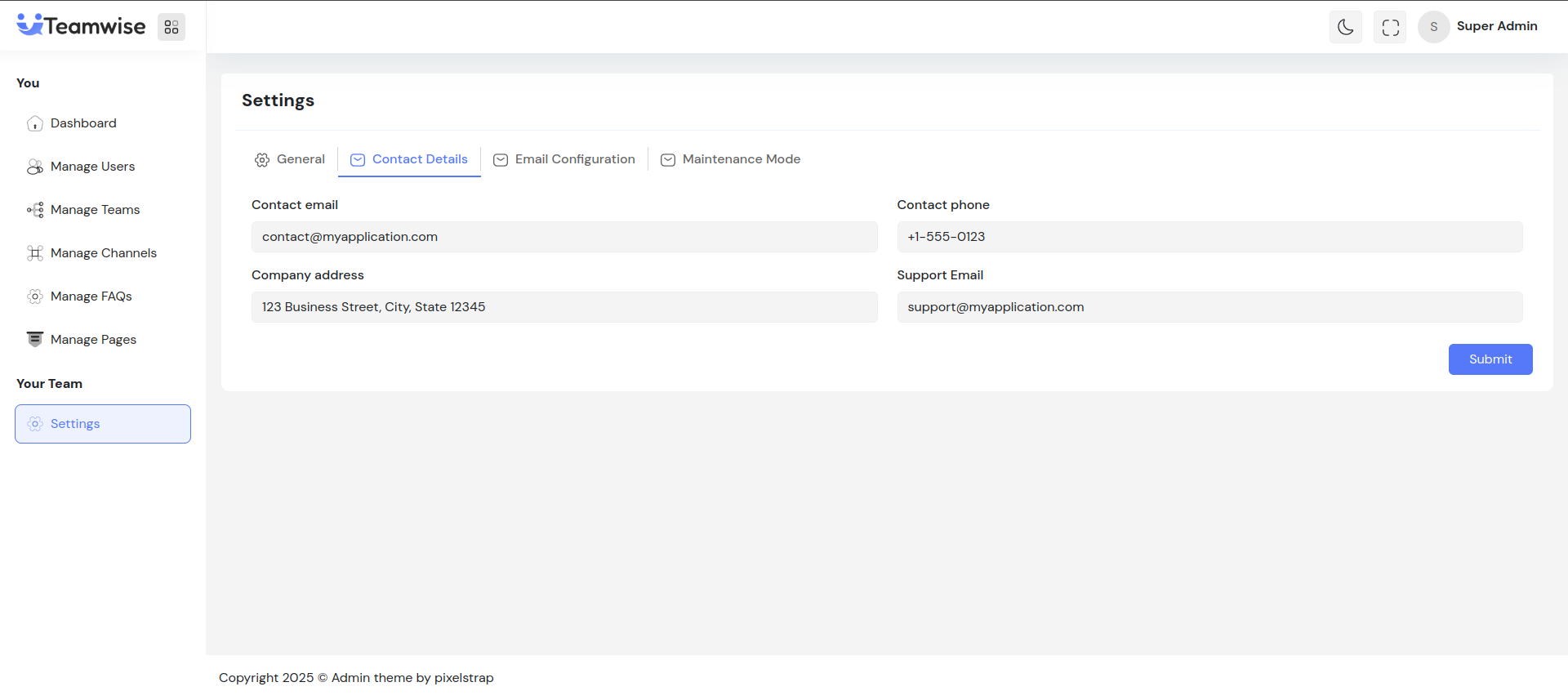
Admin can configure contact information displayed to users:
-
- Support Email: Email for user support queries
-
- Contact Email: General contact email
-
- Contact Phone: Contact phone number
After updating contact details, the information is displayed across the platform where applicable. Success notification confirms the update.
4. Email Configuration Tab
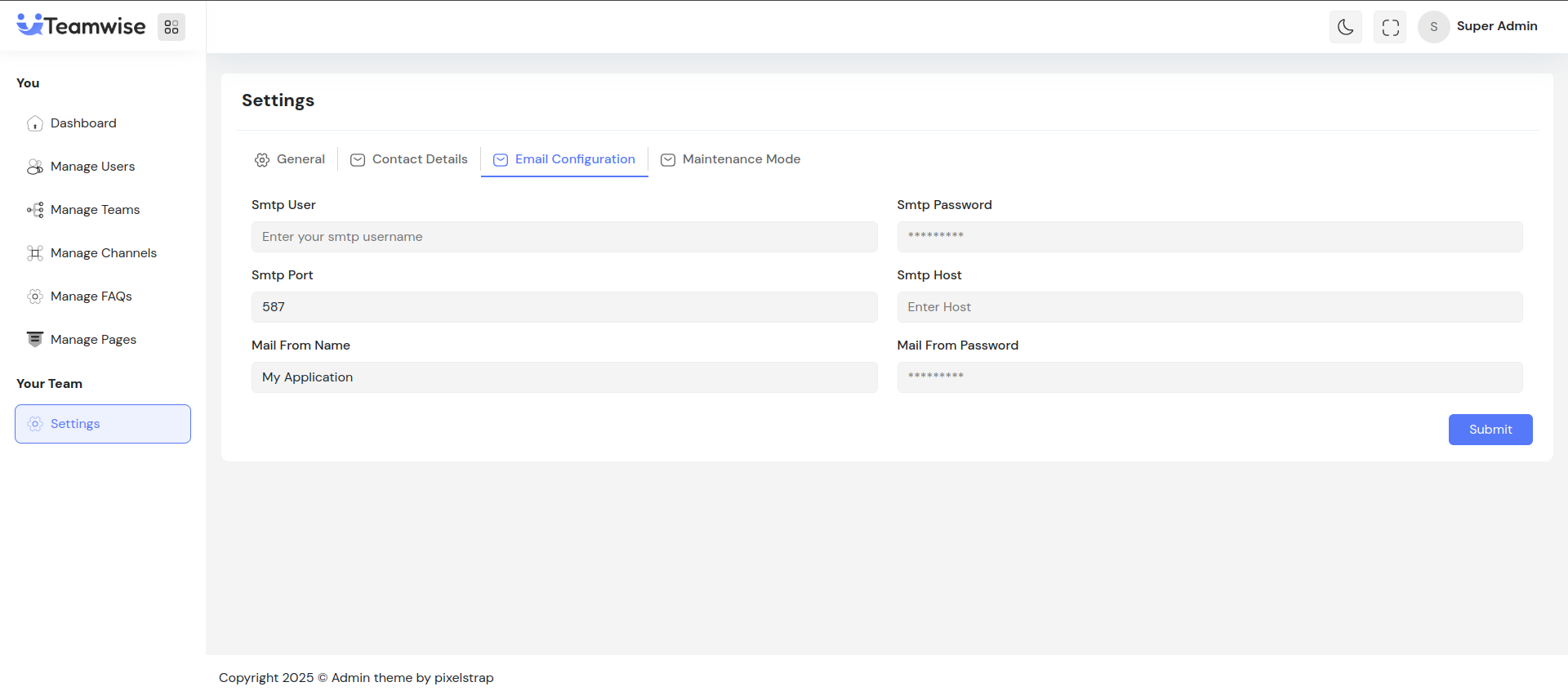
Admin can configure SMTP email settings for sending system emails:
-
- SMTP User: Email account username
-
- SMTP Password: Email account password
-
- SMTP Port: Mail server port (e.g., 587, 465)
-
- SMTP Host: Mail server hostname (e.g., smtp.gmail.com)
-
- Mail From Name: Sender name displayed in emails
-
- Mail From Email: Sender email address
After updating email settings, the system uses these credentials for all outgoing emails (OTP, notifications, etc.). Success notification confirms the configuration update.
5. Maintenance Mode Tab
Admin can enable/disable maintenance mode for the platform:
-
- Maintenance Mode Toggle: Enable/disable maintenance mode
-
- Maintenance Title: Heading displayed during maintenance
-
- Maintenance Message: Message shown to users during maintenance
-
-Maintenance Image: Image displayed on maintenance page
When maintenance mode is enabled, all users are logged out and shown the maintenance page. Only admins can access the platform. When disabled, normal operations resume immediately.
Key Points
-
-Changes apply platform-wide immediately after saving
-
- Supports PNG, JPG, SVG formats for logos and images
-
- SMTP configuration required for email functionality
-
- Settings organized in tabs: General, Contact Details, Email Configuration, and Maintenance Mode
-
- Maintenance mode restricts user access while allowing admin access
What's Next?
Let’s get started — your team’s new home is Teamwise Chat!


