 Teamwise Super Admin
7. Plans Management Module
1. Plans List View
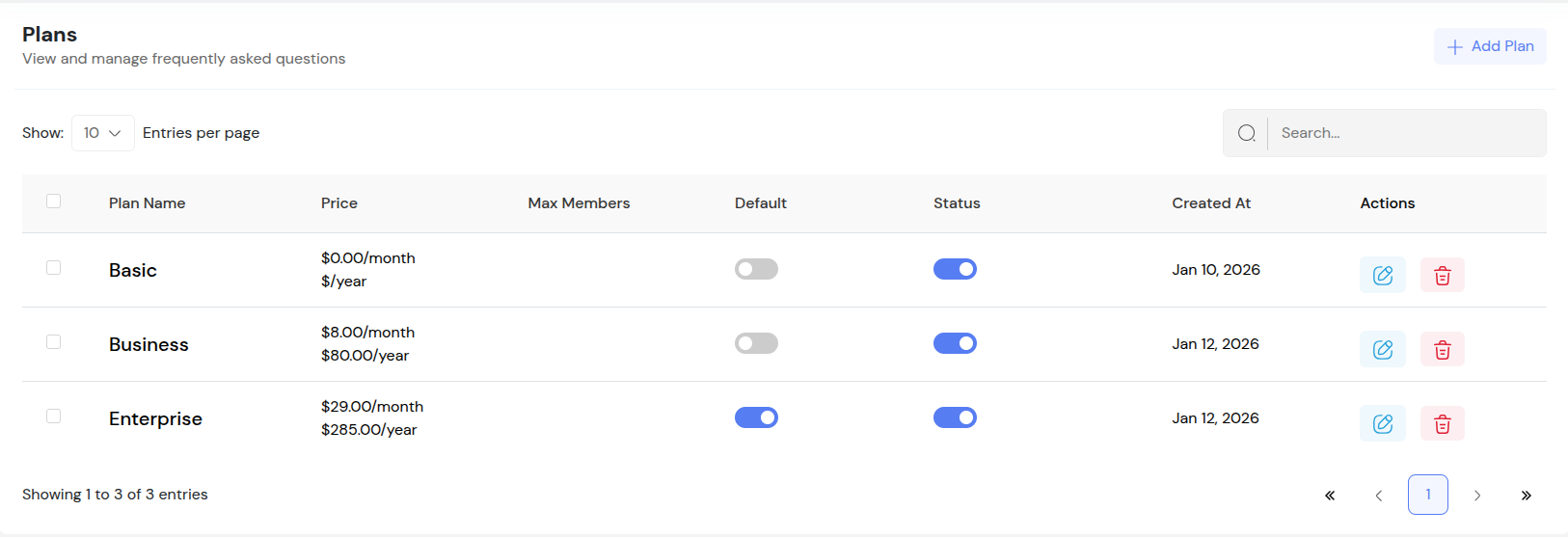
The plans table displays all subscription plans with plan name, pricing (monthly/yearly per user), maximum members allowed, default plan indicator, status toggle (Active/Inactive), creation date, and action buttons (Edit and Delete). Super Admin can manage subscription plans that will be available for team admins to purchase for their teams.
2. Add/Edit Plan
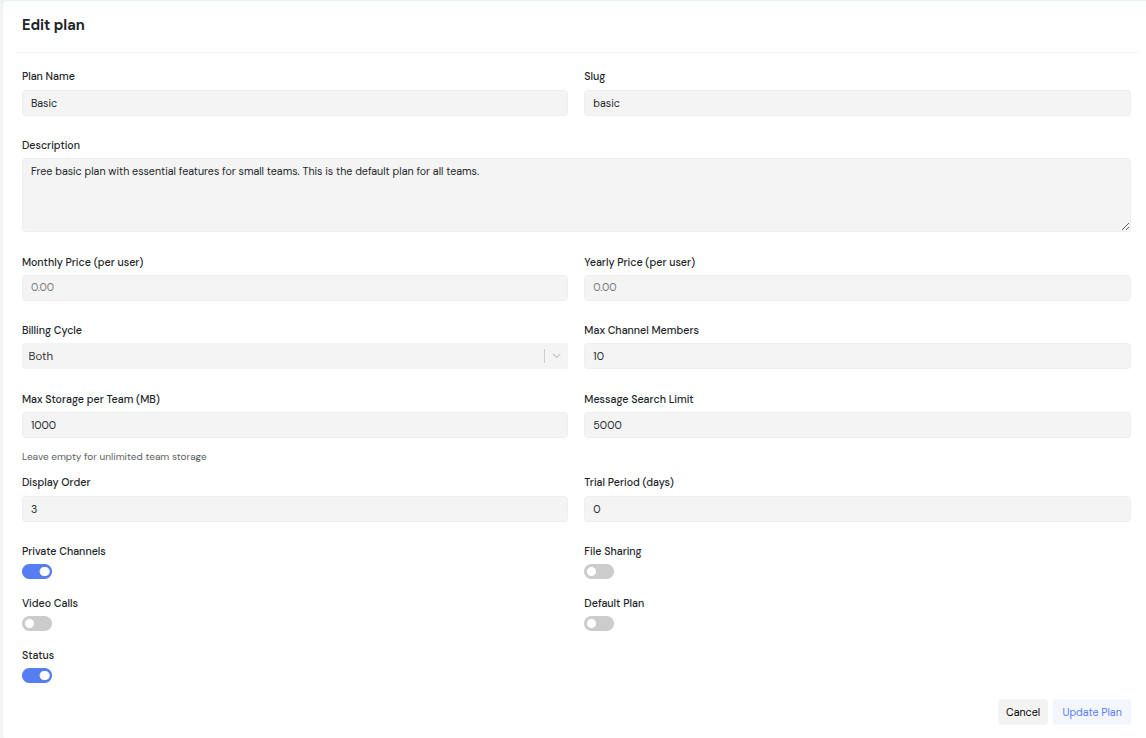
Super Admin can click "Add Plan" or "Edit" to create or modify subscription plans. The form includes comprehensive fields:
-
Basic Information:
- Plan Name (3-100 characters, required)
- Slug (auto-generated from plan name, lowercase letters, numbers, and hyphens only, 3-100 characters)
- Description (optional, up to 2000 characters)
-
Pricing Information:
- Monthly Price per User (numeric, minimum 0, required)
- Yearly Price per User (numeric, minimum 0, optional)
- Billing Cycle (Monthly, Yearly, or Both)
-
Usage Limits:
- Max Members (integer, minimum 1, required) - Maximum team members allowed
- Max Storage per Team (MB, optional) - Leave empty for unlimited storage
- Message Search Limit (integer, minimum 0, default 10000) - Maximum messages that can be searched
-
Feature Flags:
- Private Channels (toggle) - Allow teams to create private channels
- File Sharing (toggle) - Enable file sharing functionality
- Video Calls (toggle) - Enable video calling features
- Multiple Delete (toggle) - Allow bulk delete operations
-
Additional Settings:
- Display Order (integer, minimum 0) - Controls the order plans appear to team admins
- Default Plan (toggle) - Mark plan as default/recommended
- Trial Period Days (integer, minimum 0) - Number of free trial days
- Status (Active/Inactive toggle) - Control plan visibility to team admins
After saving, the plan is created/updated and appears in the plans list. All active plans become available for team admins to view and purchase.
3. Toggle Plan Status
Super Admin can activate/deactivate plans using the status toggle in the plans table. Active plans are visible to team admins and can be purchased, while inactive plans are hidden from team admins but remain in the system for reference. Status changes take effect immediately. Only active plans appear in the team admin's plan selection interface.
4. Set Default Plan
Super Admin can mark a plan as the default plan using the default toggle in the plans table. The default plan is highlighted as "Recommended" when team admins view available plans. Only one plan can be set as default at a time; setting a new default plan automatically removes the default status from the previously default plan. This helps guide team admins toward a recommended plan option.
5. Delete Plan
When Super Admin clicks Delete, a confirmation modal appears to prevent accidental deletions. Upon confirmation, the plan is permanently deleted and removed from the plans table. Bulk delete is available for multiple plans - select multiple plans using checkboxes and choose delete from the bulk actions dropdown. Note: Deleted plans cannot be recovered, and teams currently subscribed to deleted plans may need to be migrated to different plans.
6. Team Admin Plan Purchase Flow
Once plans are created and activated by Super Admin, team admins can access and purchase these plans:
-
Plan Discovery: Team admins can view all active plans in their team admin interface, displaying plan names, descriptions, pricing, features, and usage limits.
-
Plan Selection: Team admins can select a plan and choose billing cycle (monthly or yearly) if the plan supports both options. They can specify the number of team members for subscription calculation.
-
Quote Calculation: The system automatically calculates the total subscription cost based on selected plan, billing cycle, and member count. The quote includes price per user and total amount due.
-
Subscription Purchase: After reviewing the plan details and quote, team admins can proceed to purchase, which activates the plan features for their team. The subscription includes trial period if configured, and renewal dates are set based on the billing cycle.
-
Feature Access: Once subscribed, teams gain access to all enabled features in the plan (private channels, file sharing, video calls, etc.) and are bound by the plan's usage limits (max members, storage, message search limits).
Key Points
-
- Plans created by Super Admin are visible to all team admins for purchase
-
- Pricing is configured per user, allowing flexible subscription models based on team size
-
- Feature flags control which capabilities teams receive based on their subscribed plan
-
- Usage limits (members, storage, search) enforce plan restrictions automatically
-
- Billing cycles can be monthly, yearly, or both - giving team admins flexibility in subscription options
-
- Default plan designation helps guide team admins to recommended options
-
- Trial periods allow team admins to test plans before committing to paid subscriptions
-
- Display order controls how plans are presented to team admins (lower numbers appear first)
-
- Active/inactive status provides control over plan availability without deleting plans
-
- Plans support free versions (when extended version feature is disabled) - prices are forced to $0
What's Next?
Let's get started — your team's new home is Teamwise Chat!


